
Using an Apple Keyboard on Fedora KDE
After retiring my Apple Mac Pro 5,1 from its role as my main workstation, I tried using a retired gaming PC instead. After experiments with various Linux distributions (Arch, Omarchy, Debian, PopOS!) I landed on the latest Fedora KDE distro (44) after reading good reports about its balance of stability and up-to-date software.
This has proved to be a solid and enjoyable system and my distro-hopping has stopped. I have been customising it to my needs and learning about KDE’s latest features.
I have been using a Corsair K65 keyboard on this system. I have been pleased with its typing action and solidity but during extensive coding sessions, using Emacs, I became frustrated with two things:
- The non-standard position of the Delete, Home, Page-Up and Page-Down keys.
- The lack of a numeric keypad
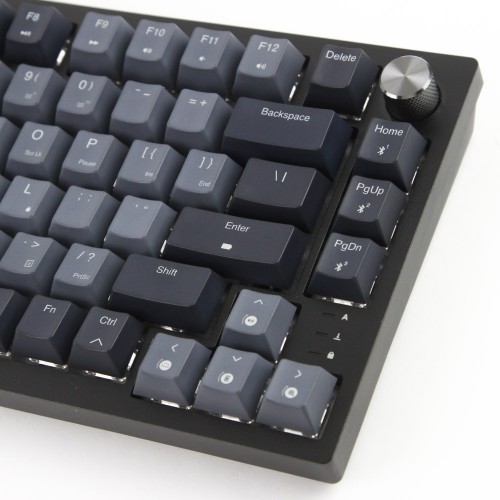
I found myself hitting Home instead of Page-Up and found myself having to look for the Delete key every time. I pondered buying a new, coding-friendly keyboard but instead I swapped it out for a spare Apple “Magic Keyboard”.
The first problem: this keyboard is wireless Bluetooth only and this gaming PC lacked Bluetooth. Checking the motherboard brand and type was performed using this command:
$ sudo dmidecode --type baseboard | grep -E 'Manufacturer|Product'
Manufacturer: ASUSTeK COMPUTER INC.
Product Name: TUF B360-PLUS GAMING
This motherboard has no onboard Wi-Fi or Bluetooth so the first job was to add Bluetooth. I had a spare TP-Link UB500 Adapter. This proved to be a simple plug-and-play operation. Inserting the USB dongle into the front panel of the PC resulted in the Bluetooth controller being shown in the KDE configuration app. A great result for the Linux kernel and KDE - this was so easy.
Turning on the Apple keyboard and clicking on “+ Pair Device” showed “Magic Keyboard with Numeric Keypad”. Clicking “Connect” resulted in some messages about PIN codes which proved unnecessary and the keyboard sprang into life.
Checking the keyboard from the CLI:
$ cat /proc/bus/input/devices
../cut/..
I: Bus=0005 Vendor=004c Product=026c Version=0206
N: Name="Magic Keyboard with Numeric Keypad"
H: Handlers=sysrq kbd leds event23
The keyboard worked well but with a couple of annoyances:
The top row defaults to the controls like brightness, volume etc. instead of the Function key and requires using the
Fnkey to use them.The Option and Command keys are reversed from the usual order. In Emacs, on a standard PC keyboard modifiers are in order:
Ctrl,Super,Meta. However, on the Apple keyboard the resulting order is:Ctrl,Meta,Super. Of course, this is terrible for my muscle memory causes mistakes when moving between office and home PCs running Emacs.
There were plenty of guides for fixing both of these but most were older and described changes to X11 keyboard maps and runnning commands that do not apply to Fedora Linux.
Eventually, the guide on the excellent Arch Wiki proved most useful.
This described the following hid_apple module options:
fnmode - Mode of top-row keys
    0 - disabled
    1 - normally media keys, switchable to function keys by holding Fn key
    2 - normally function keys, switchable to media keys by holding Fn key
    3 - auto (Default)
iso_layout – Controls ISO vs ANSI layout handling
             (swap of the backtick/tilde and greater-than/less-than keys).
    0 – disabled (assume ANSI layout)
    1 – enabled (assume ISO layout)
    -1 – auto-detect (default)
swap_opt_cmd - Swap the Option (Alt) and Command (Flag) keys
    0 - as silkscreened, Mac layout (Default)
    1 - swapped, PC layout
swap_fn_leftctrl - Swap the Fn and L_Control keys
    0 - as silkscreened, Mac layout (Default)
    1 - swapped, PC layout
We can read the current setting for fnmode using:
cat /sys/module/hid_apple/parameters/fnmode
Initially this showed 3, the default. It was changed to 2
to force the use of Function keys:
echo 2 | sudo tee /sys/module/hid_apple/parameters/fnmode
Note the use of sudo and tee to work around the permissions
required to set this parameter.
Check the value has changed:
cat  /sys/module/hid_apple/parameters/fnmode
2
This will only change the setting for the current session and will be reset back to the default after the first reboot. To make it permanent, on Fedora, use the dracut utility:
sudo dracut --regenerate-all --force
We change the swap_opt_cmd setting:
Check the current value:
cat  /sys/module/hid_apple/parameters/swap_opt_cmd
0
Change to 1:
echo 1 | sudo tee /sys/module/hid_apple/parameters/swap_opt_cmd
sudo dracut --regenerate-all --force
After this, the Emacs modifier keys were in the correct order
(Ctrl, Super, Meta).